The migration guide tells you what to do. This page shows you what actually happens when somebody does it — one complete ENS import, run on a clean SocietyPress 1.5.51 install, with the real numbers and every screen along the way.
Nothing here is a mockup. Every figure and every screenshot below came out of an actual import.
The society
Cedar County Genealogical Society is invented, and so is every person in its member file. It exists so this walkthrough can show you real behaviour without publishing anybody's real membership list.
Its ENS export holds 22 members in 87 columns — the standard ENS member export plus the dues and payment block that societies collecting money through ENS will also have. Twenty-two is small on purpose. It is big enough to contain every awkward case and small enough that you can check the result by eye, which is exactly what you want the first time you try this.
The file was built to be difficult in the ways real society files are difficult:
| What's in it | Why it's there |
|---|---|
| 10 ordinary individual members | The easy case, and most of any real file |
| 3 married couples, 6 rows | Each couple shares one Membership Tie ID — this is what makes them one membership rather than two |
| 1 snowbird | Winters in Florida, so the row carries a full seasonal address and the dates it applies |
| 1 life member | Paid once in 2004, no expiration date, joined 1994 |
| 1 lapsed member | Stopped renewing in 2025 |
| 1 deceased member | Marked deceased, family asked that the surname file stay open |
| 2 institutional members | A library and a museum, each with a named contact person |
One of the ten individuals is Agnes Trowbridge, the society's webmaster — the person doing the import. That matters, and it is the first thing you will run into.
Step 1: Add yourself
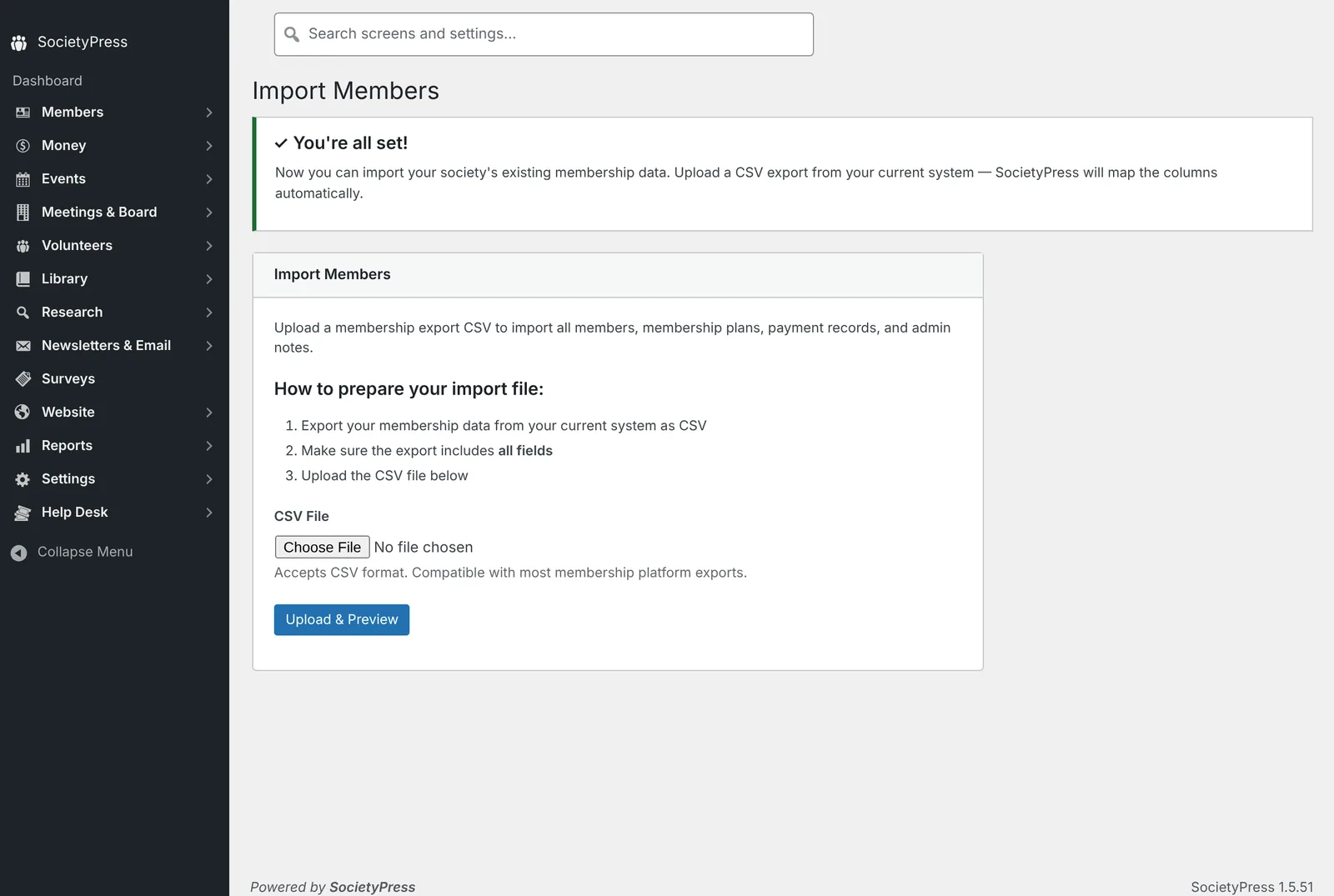
Open Members → Import on a fresh site and SocietyPress stops you before you upload anything: it asks you to add yourself as the society's first member. That links the account you signed in with to a member record, so you appear in the directory and can use My Account like everybody else.
Use the same email address the society has on file for you — the one in your ENS record. It is how the import will recognise you in a moment. If your WordPress account was set up with a different address, the import falls back to matching your name, but the email is the surer of the two.
With that done, the import screen opens.
Step 2: Upload and check the mapping
Upload the CSV exactly as ENS gave it to you. SocietyPress reads the header row and matches every column it recognises to where it belongs.
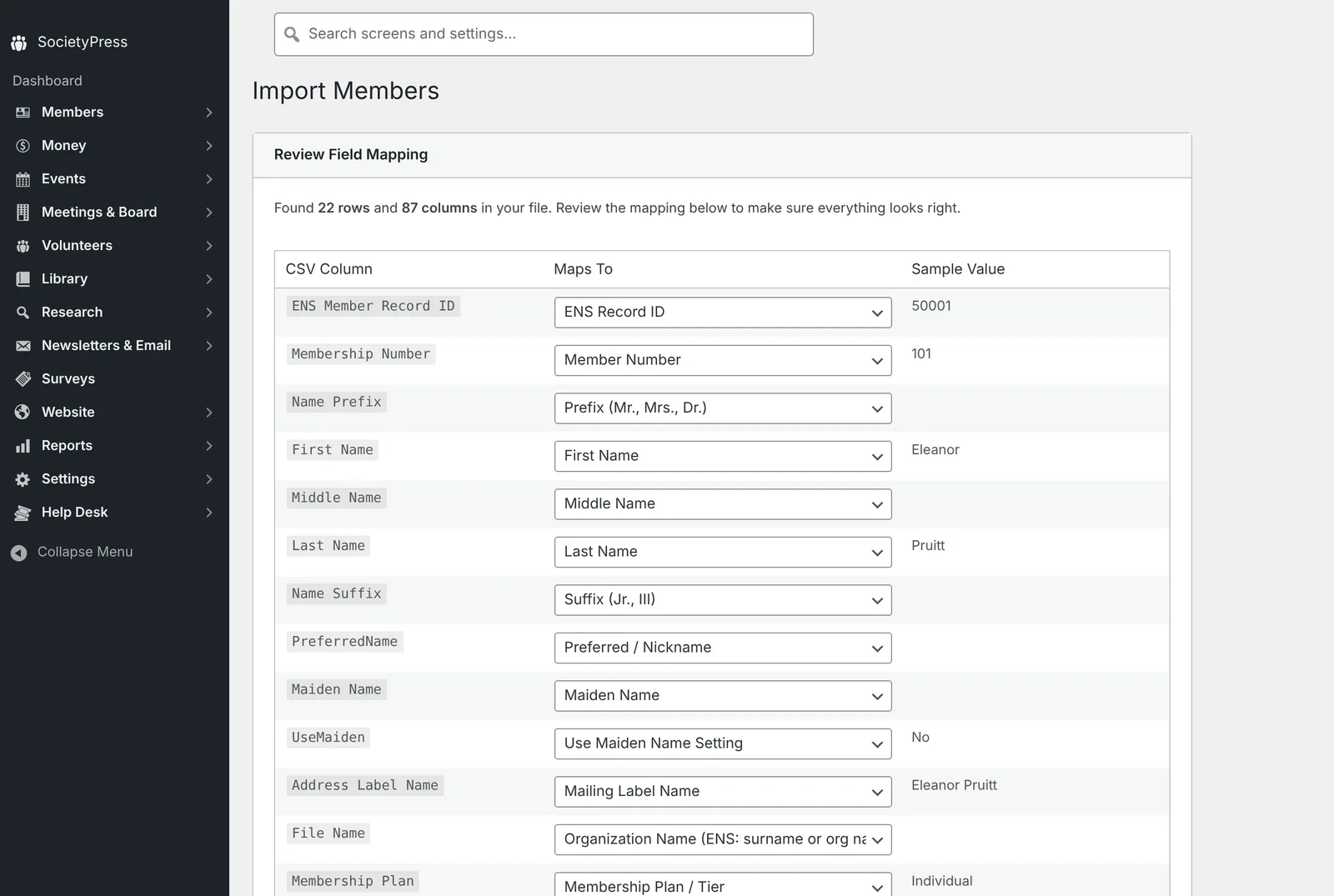
All 87 columns were matched without help. The left column is what your file calls it, the middle is where it is going, and the right is the value from the first row, so you can see at a glance that First Name really contains first names. If one of your columns has been given a name ENS never used, this is where you point it at the right place.
Step 3: Confirm it's you
Click Run Import and, before anything is written, SocietyPress shows you any row that looks like somebody who already has an account on the site. On a fresh install that is you, and only you:
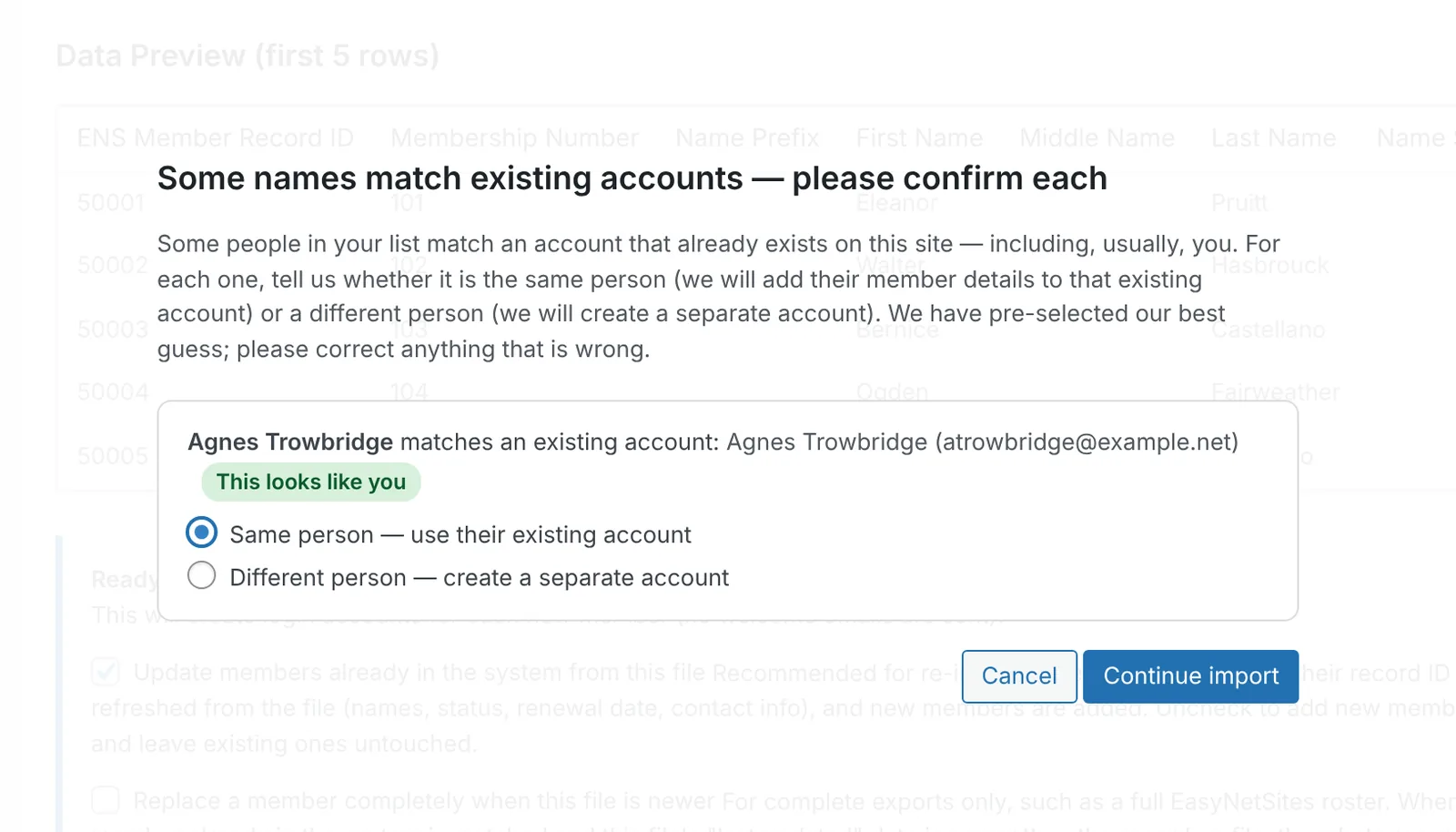
"Same person" is already selected. Leave it. Your row from the file is then added to the member record you made in Step 1 — your member number, join date, plan and payment history — instead of creating a second Agnes Trowbridge beside the first. Your password and sign-in stay exactly as they are.
What happened
22 of 22 members processed
21 imported    0 updated    1 linked    0 skipped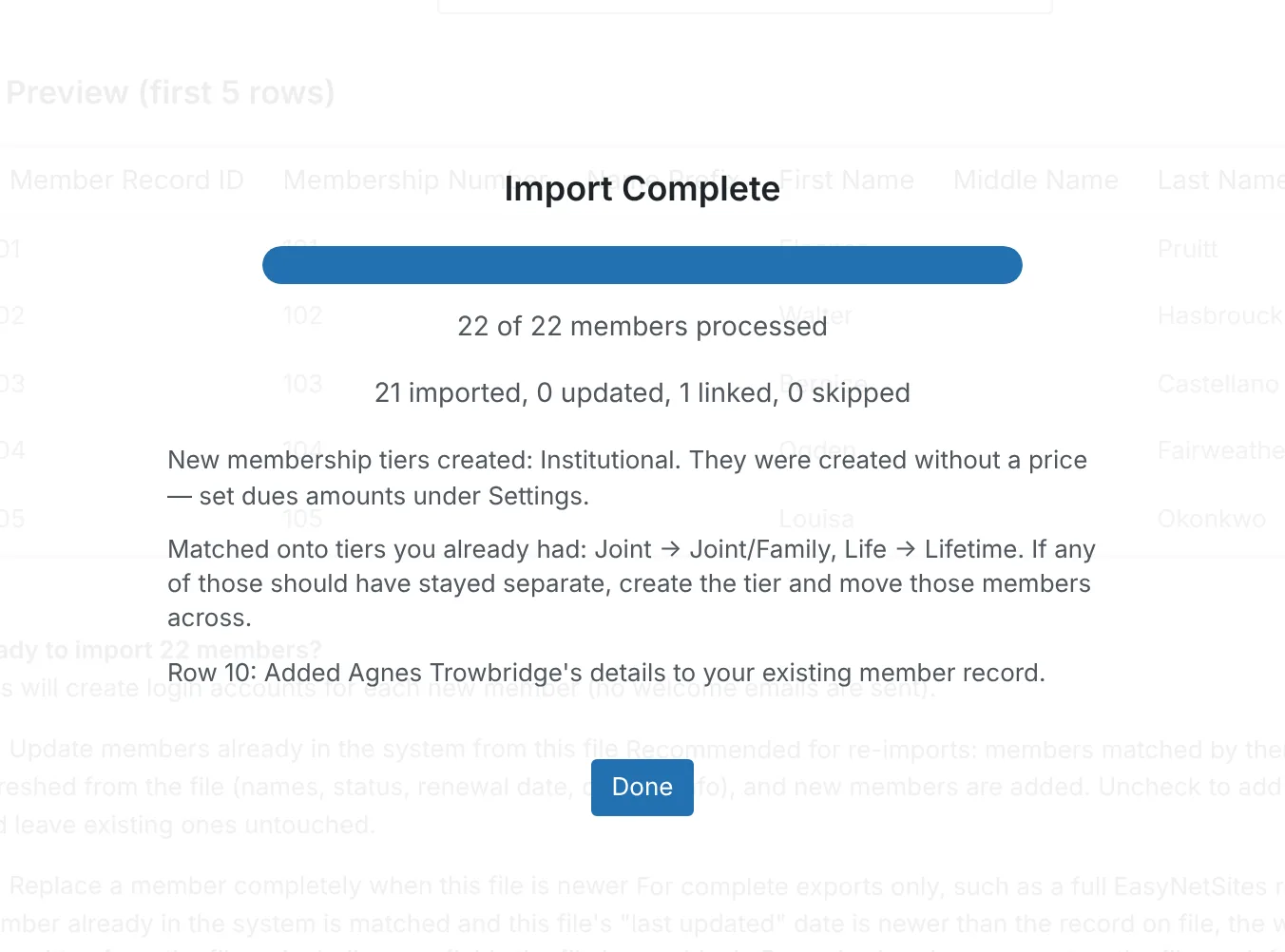
Twenty-one members were created and one — you — was linked. Nothing was skipped and nothing errored. The summary also says what it did to your membership plans, because that is a decision it made on your behalf:
- Created: Institutional. SocietyPress has no plan by that name, so it made one. It has no price yet; set the dues under Settings.
- Matched: Joint onto Joint/Family, Life onto Lifetime. SocietyPress ships with those five plans already, and "Joint" and "Life" are the same plans under shorter names, so the members joined the existing ones rather than creating near-duplicates beside them.
Here is what the site looked like afterward.
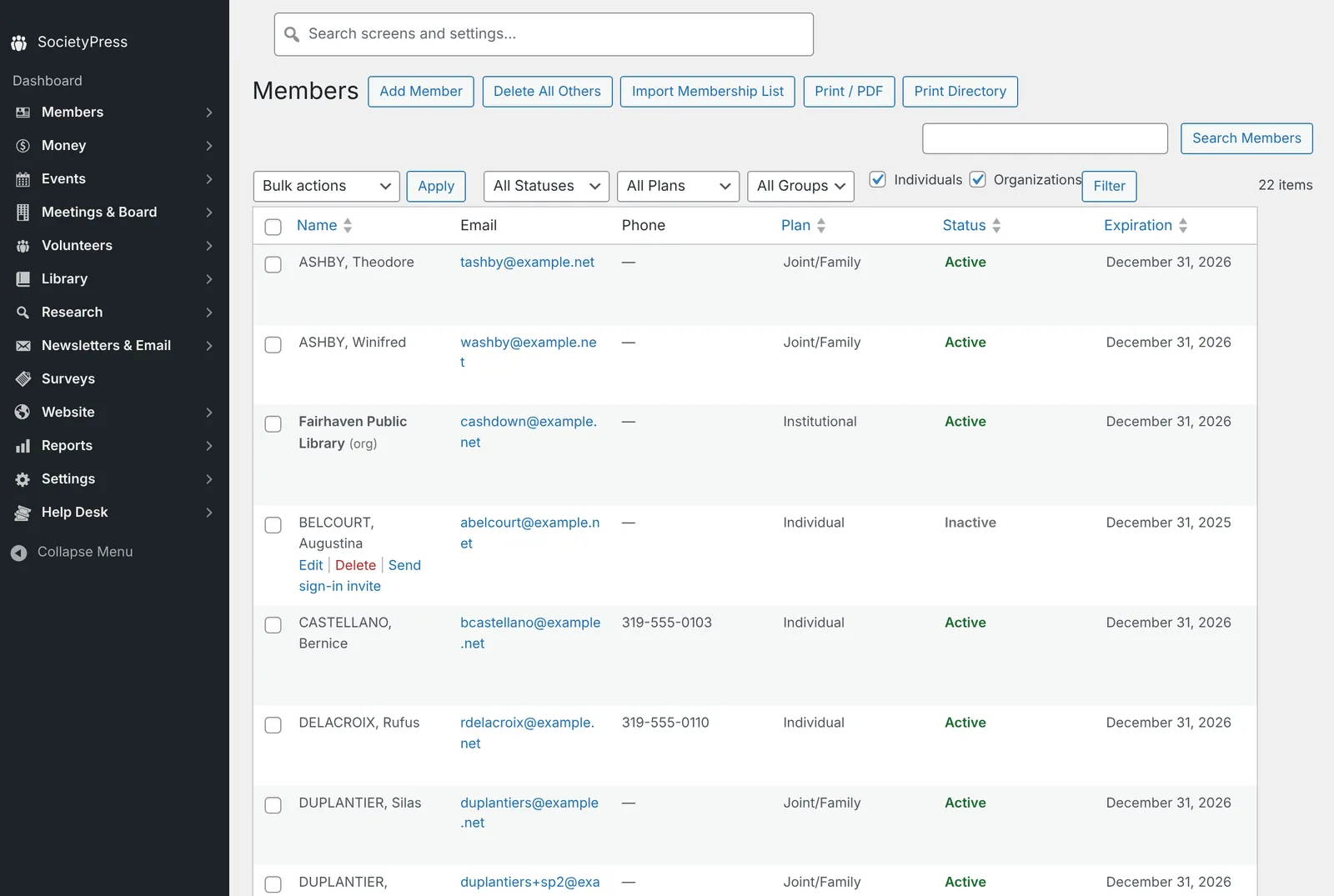
Statuses sorted themselves out. 20 active, 1 inactive, 1 lapsed — matching the file exactly. The deceased member came across marked deceased and set inactive, with the administrative note preserved.
Plans landed where they should. 13 Individual, 6 Joint/Family (the three couples), 1 Lifetime, 2 Institutional.
The couples became couples. All three pairs arrived sharing a household, matched on their Membership Tie ID:
2001 — Harold Whitmore + Greta Whitmore
2002 — Silas Duplantier + Ramona Duplantier
2003 — Theodore Ashby + Winifred Ashby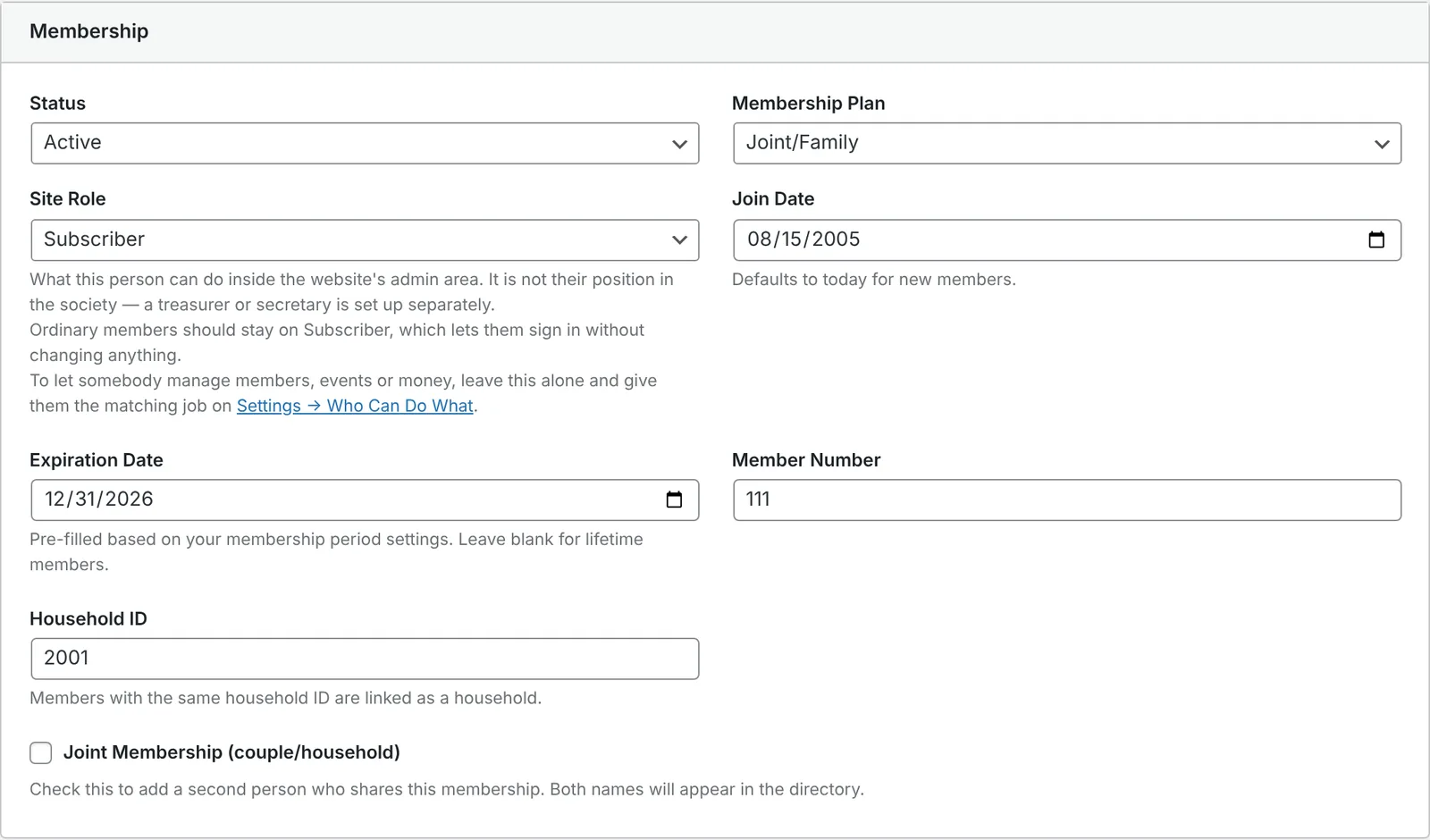
This is the single most important thing to check after your own import. If your couples arrive as six unrelated people instead of three memberships, your Tie ID column didn't come across, and it is far easier to fix that now than after a renewal season.
The Duplantiers share one email address in the file, as many couples do. WordPress needs every account to have its own, so Ramona's sign-in became duplantiers+sp2@example.net — a form of the address that most mail services deliver to the same inbox.
The seasonal address survived intact, including the dates it applies — November 1 through April 15:
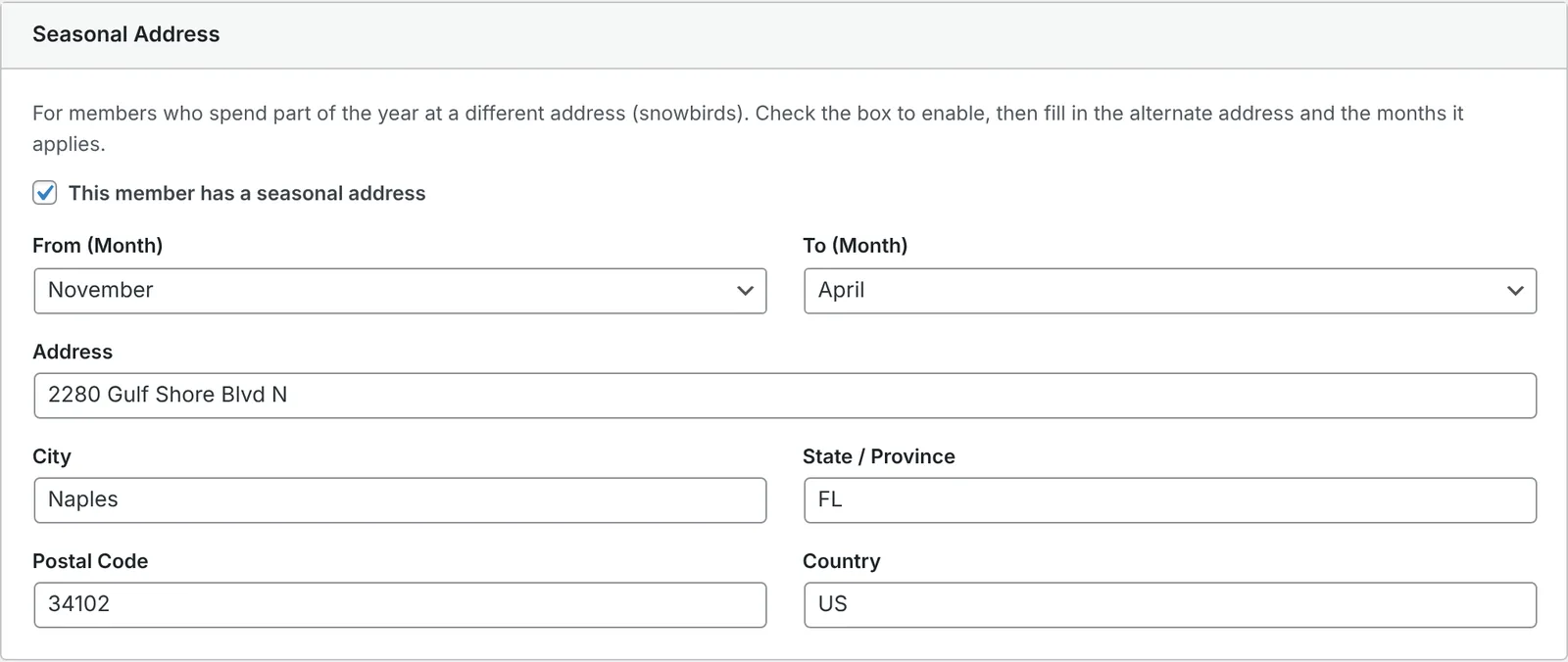
That means the Quarterly gets mailed to Florida in the winter without anybody having to remember to change it. The form only asks for months, but the day your ENS record gives is kept, and saving the member — or the member saving their own address in My Account — doesn't lose it.
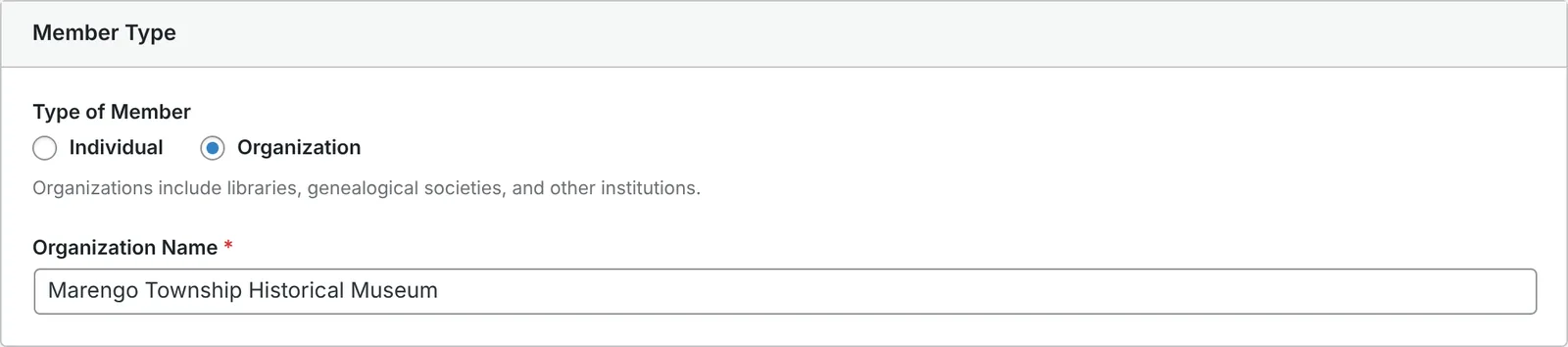
Both institutions are organizations, each with its contact person attached:
Institutions: how SocietyPress tells them apart
Institutional members — libraries, museums, partner societies — usually appear in an ENS export as a contact person's name with the institution's name in the File Name column. The trouble is that in most ENS exports, File Name holds the member's own surname for ordinary individuals too. If SocietyPress treated every populated File Name as an institution, it would turn your entire membership into organizations.
So it also looks at the Membership Type column, and files the row as an organization when that says so: "Organization", "Institutional", "Corporate", "Company", "Non-Profit", "Agency" and a few other ordinary ways of putting it. The library in this file says Organization and the museum says Institutional; both were filed correctly.
The list is deliberately conservative. "Library", "Museum", "Society" and "Church" are not treated as organizations, because a society might just as easily use one of those words for an individual tier — and turning your whole membership into organizations would be a much worse mistake than the one being avoided.
If your society uses a word of its own, the import files that row as an individual, and the summary tells you so: how many rows had an organization name it didn't use, and which Membership Type values it saw. Correct those rows in the spreadsheet and import again.
Running it twice is safe
This is the part most people are afraid of, so it is worth stating plainly: importing the same file a second time does not duplicate anybody.
The same file was imported again, unchanged:
22 of 22 members processed
0 imported    22 updated    0 linked    0 skipped
member count: 22 (unchanged)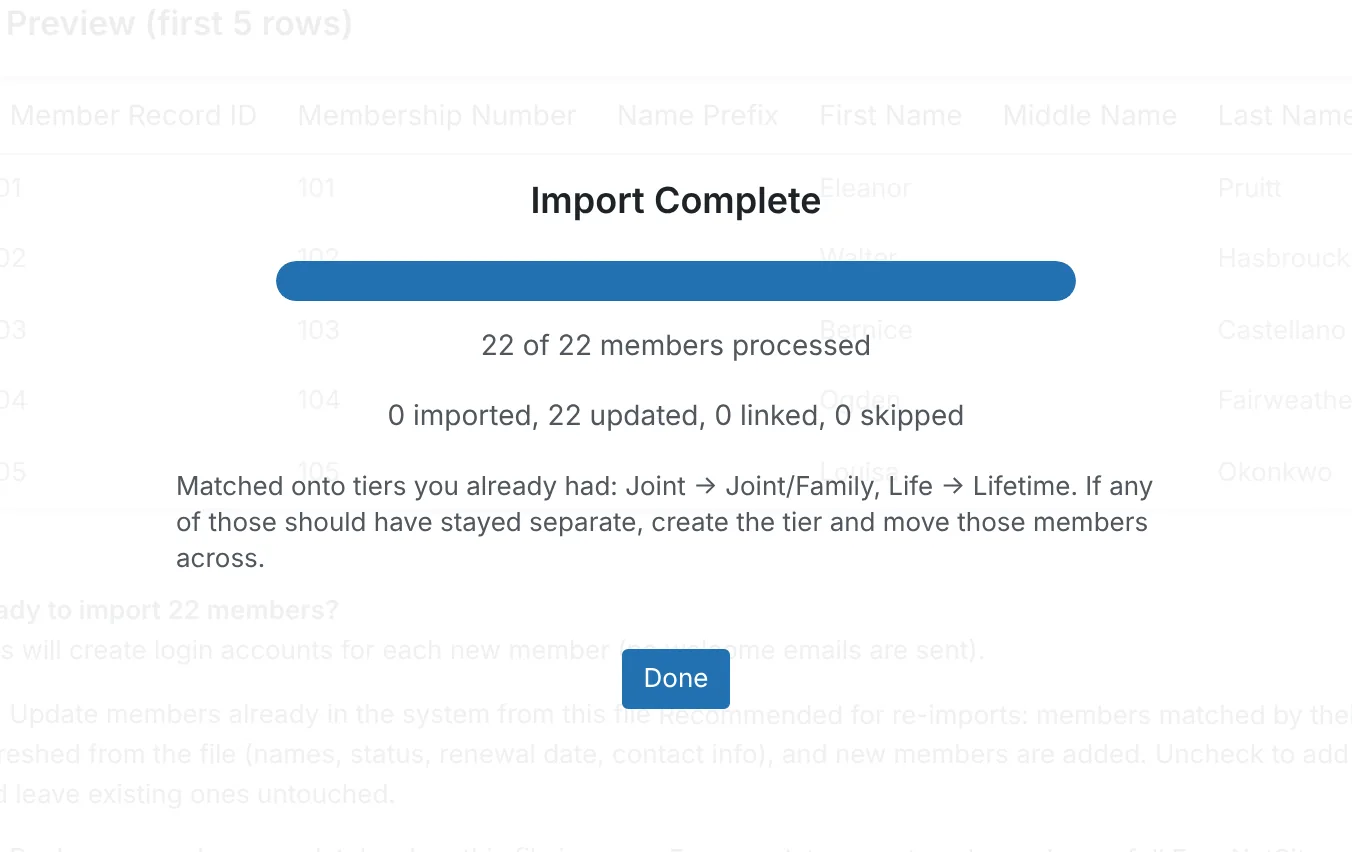
Twenty-two updates, zero new records, same total — and the payment history was not recorded a second time. SocietyPress matches each incoming row against members it already has using the ENS Member Record ID column, which is stable across exports. That is what makes a second import an update rather than a duplication. Your own record is included: the first import gave it your ENS Record ID, so the second recognised you without asking.
This matters more than it sounds. It means you can import, discover something wrong, fix it in the spreadsheet, and import again — as many times as you need — without cleaning up after yourself. It also means you can do a trial import weeks before your real cutover, then re-import the current file on the day, and only the changes come across.
The one thing that breaks this: if your export doesn't include the ENS Member Record ID column, SocietyPress has nothing stable to match on. Check for it before your first import.
What to check after your own import
In this order, because each one is cheaper to fix than the one after it:
- Total count. Does the number of members match the number of rows in your file? If not, look at the skipped count and the messages under it.
- You, once. Search the member list for your own name. There should be one of you, with your ENS member number on it.
- Your couples. Pick three you know and confirm each is one membership with two people, not two memberships.
- Your plans. Read what the summary said it created and matched. Set prices on any plan it created.
- Your institutional members. Confirm the institution's name appears, not just the contact person's.
- A seasonal address, if you have any. Confirm the months came across along with the address.
If something is wrong, fix the spreadsheet and import again. That's what the re-import safety is for.
What earlier runs turned up
This walkthrough was first run in August 2026, and running it end to end is how three problems were found. They are fixed, and they are listed here because each one explains something the import now does on purpose.
- Duplicate plans (fixed in 1.5.5). Plans called "Joint" and "Life" used to be created alongside the built-in Joint/Family and Lifetime, leaving eight plans where four were meant. That is why the summary now says what it matched.
- Institutions filed as individuals (fixed in 1.5.4). Only the exact word "Organization" used to count, so the museum lost its name. That is why the wider list above exists, and why the summary reports values it didn't recognise rather than staying quiet.
- The webmaster imported twice, and lost snowbird dates (fixed in 1.5.51). Adding yourself first used to make you a member the confirmation in Step 3 never asked about, so your own row arrived as a second copy of you. Separately, the member form couldn't display a seasonal date it hadn't written itself, so editing an imported snowbird erased their dates.
Where this was run
On a throwaway WordPress install, not on a live site and not on the public demo. That is the recommended way to do your own first pass: a scratch install, a real file, and no consequences. When you are satisfied the result is right, do it again on the site you actually intend to keep.
The demo site at demo.getsocietypress.org carries a different dataset and is not part of this walkthrough. The Cedar County file can be rebuilt with scripts/generate-ens-walkthrough-fixture.py in the SocietyPress repository, so anybody can run the same import and check these numbers.